
In part 3 you built a local cluster with kind and pointed kubectl at it. Now you put something on it. By the end of this episode you will write a Pod manifest by hand, apply it, look inside it five different ways, watch three small Pods succeed, crash and fail to pull, and delete all of it. You need the kind cluster from part 3 and kubectl. We tested everything on kind v0.33.0 (node image v1.37.0) with kubectl v1.37.2. Our lab cluster is called k8s-ep04, so node names below say k8s-ep04-control-plane; yours will carry the name you chose.
What you will build
You will run one web server, nginx, inside one Pod named hello. A Pod is the smallest unit Kubernetes runs. It is a wrapper around one or more containers that share a network address and, optionally, storage. You never ask Kubernetes to run a bare container; you ask it to run a Pod, and the kubelet (the agent on each node, from part 2) starts the containers inside it.
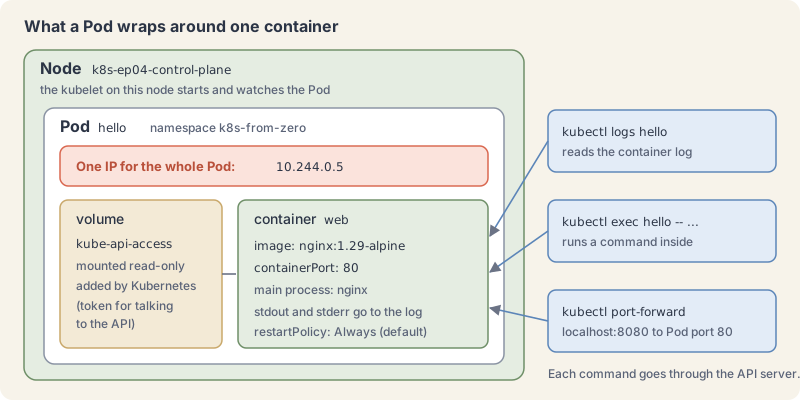
The diagram shows the three ideas that matter today. The IP address belongs to the Pod, not to the container. The container is built from an image with a pinned tag. And every way you look inside, from logs to a shell, goes through the API server.
A Pod wraps one or more containers
The Kubernetes docs describe a Pod as a group of one or more containers “with shared storage and network resources, and a specification for how to run the containers”. The name comes from a pod of whales or a pea pod: several things that travel together.
Three properties follow from that:
- One network identity. Each Pod gets its own IP address. Every container in the Pod shares it, so two containers in the same Pod talk to each other on
localhost. Containers in different Pods use the Pod IPs. - One hostname. Containers see the Pod name as their hostname. You will check that in the lab.
- One place. All containers of a Pod run on the same node, scheduled together.
Most Pods run exactly one container, and that is what we do in this whole first arc. Multi-container Pods (sidecars, init containers) get their own episode later in the series.
Pods are also disposable. A Pod is scheduled to a node once and stays there until it finishes, is deleted, or its node fails. Kubernetes never moves a Pod; it replaces it with a new one that has a new UID. That is why, in real work, you rarely create Pods by hand. You create a Deployment, and the Deployment creates Pods for you (part 7 covers that). Writing a Pod yourself first is still the best way to learn what those controllers are managing.
A manifest has four top-level fields
A manifest is a file that describes an object you want. Kubernetes reads it as a “record of intent”: once the object exists, the cluster keeps working to make reality match it. Every manifest you write has the same four top-level fields.
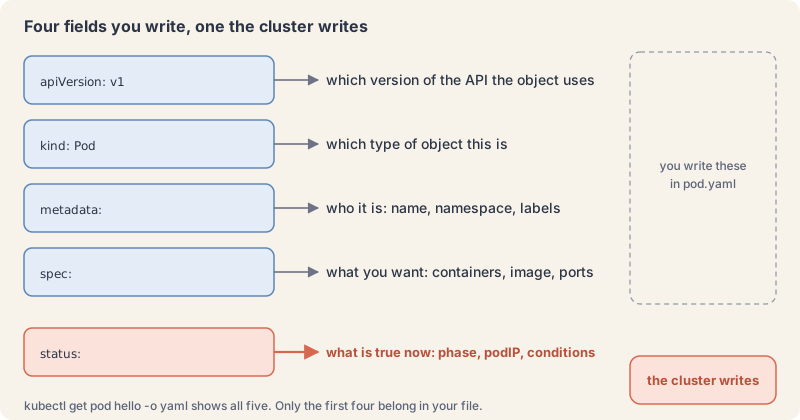
The docs list them as required fields:
apiVersion: which version of the Kubernetes API this object uses. Pods are in the core group, versionv1.kind: which type of object. Here,Pod.metadata: who the object is. At least aname. We also set anamespaceand a label.spec: the desired state. For a Pod, mainly the list of containers.
There is a fifth field you will see when you read an object back: status. The cluster writes it. It holds what is true right now: the phase, the Pod IP, the conditions. You never put status in your file.
Save this as pod.yaml:
apiVersion: v1
kind: Pod
metadata:
  name: hello
  namespace: k8s-from-zero
  labels:
    app.kubernetes.io/name: hello
spec:
  containers:
    - name: web
      image: nginx:1.29-alpine
      ports:
        - containerPort: 80
A few details a beginner trips over:
- Indentation is structure. YAML uses spaces, never tabs.
containersis a list, so each container starts with-. Two spaces per level is the house style. - The name rules. A Pod name must be lowercase letters, digits,
-or., and start and end with a letter or digit. The names page recommends the stricter DNS label rules (63 characters, no dots) so the name also works as a hostname. - Pin the image tag.
nginx:1.29-alpinesays exactly which image to run. With a tag other thanlatest, the default pull policy isIfNotPresent: the node pulls the image once and reuses it. containerPortis documentation. It tells readers and tools which port the process listens on. It does not open or block anything by itself.namespaceis a folder for names inside the cluster. Part 6 explains namespaces properly; for now, every object in this series goes into one calledk8s-from-zero.- The label
app.kubernetes.io/name: hellois a tag we can search by. Part 5 shows how, and part 6 explains the naming convention.
Try it: run, inspect and delete a Pod
- Create the namespace the series uses. You only do this once.
kubectl create namespace k8s-from-zeroExplain this command
kubectl create namespace k8s-from-zerokubectlThe Kubernetes command-line client. Subcommands and flags are documented under kubernetes.io/docs/reference/kubectl/.createCreate a resource from a file or from stdin. Here it takes the namespace subcommand.namespaceCreate a namespace with the specified name. The synopsis is kubectl create namespace NAME [--dry-run=server|client|none].k8s-from-zeroThe namespace name. The lesson says every object in this series goes into a namespace called k8s-from-zero.
namespace/k8s-from-zero created- Apply the manifest, then list Pods in that namespace straight away.
kubectl apply -f pod.yaml
kubectl get pods -n k8s-from-zeroExplain this command
kubectl apply -f pod.yaml
kubectl get pods -n k8s-from-zerokubectlThe Kubernetes command-line client. Subcommands and flags are documented under kubernetes.io/docs/reference/kubectl/.applyApply a configuration to a resource by file name or stdin. The apply docs say the resource is created if it does not exist yet. JSON and YAML are accepted.-fShort form of --filename. The files, directories or URLs that contain the configurations to apply.pod.yamlThe file named by --filename. The lesson saves the Pod manifest under this name.kubectlThe Kubernetes command-line client. Subcommands and flags are documented under kubernetes.io/docs/reference/kubectl/.getDisplay one or many resources. kubectl get prints a table of the most important information about the resources you name.podsThe resource type to display. kubectl get points you to kubectl api-resources for the full list of types the server supports.-nShort form of --namespace. If present, the namespace scope for this CLI request.k8s-from-zeroThe namespace name passed to --namespace.
pod/hello created
NAME    READY   STATUS              RESTARTS   AGE
hello   0/1     ContainerCreating   0          0s
A few seconds later:
NAME    READY   STATUS    RESTARTS   AGE
hello   1/1     Running   0          6s
READY 1/1 means one of one containers is ready. -n k8s-from-zero tells kubectl which namespace to look in; without it, kubectl looks in default and finds nothing.
- Ask for the wide view to see the Pod IP and the node.
kubectl get pods -n k8s-from-zero -o wideExplain this command
kubectl get pods -n k8s-from-zero -o widekubectlThe Kubernetes command-line client. Subcommands and flags are documented under kubernetes.io/docs/reference/kubectl/.getDisplay one or many resources. kubectl get prints a table of the most important information about the resources you name.podsThe resource type to display. kubectl get points you to kubectl api-resources for the full list of types the server supports.-nShort form of --namespace. If present, the namespace scope for this CLI request.k8s-from-zeroThe namespace name passed to --namespace.-oShort form of --output. It selects the output format. For get, the formats include json, yaml, name, jsonpath, custom-columns and wide.wideAn output format: the default table plus more columns. The get examples say it adds more information, such as the node name. The lesson's output adds IP, NODE, NOMINATED NODE and READINESS GATES.
NAME    READY   STATUS    RESTARTS   AGE   IP           NODE                     NOMINATED NODE   READINESS GATES
hello 1/1 Running 0 6s 10.244.0.5 k8s-ep04-control-plane <none> <none>- Describe the Pod. This is the command you will run most when something looks wrong, because it shows container state and the events (a log of what the cluster did to this object) at the bottom.
kubectl describe pod hello -n k8s-from-zeroExplain this command
kubectl describe pod hello -n k8s-from-zerokubectlThe Kubernetes command-line client. Subcommands and flags are documented under kubernetes.io/docs/reference/kubectl/.describeShow details of a specific resource or group of resources. The describe docs say this includes related resources such as events or controllers.podThe resource type. The describe synopsis is kubectl describe (-f FILENAME | TYPE [NAME_PREFIX | -l label] | TYPE/NAME).helloThe object name. describe first looks for an exact match on that name; if there is none, it describes every resource whose name starts with it.-nShort form of --namespace. If present, the namespace scope for this CLI request.k8s-from-zeroThe namespace name passed to --namespace.
Name:             hello
Namespace:        k8s-from-zero
...
Node:             k8s-ep04-control-plane/172.18.0.3
Labels:           app.kubernetes.io/name=hello
Status:           Running
IP:               10.244.0.5
Containers:
  web:
    Image:          nginx:1.29-alpine
    Port:           80/TCP
    State:          Running
      Started:      Tue, 10 Nov 2026 22:02:15 +0200
    Ready:          True
    Restart Count:  0
...
Conditions:
  Type                        Status
  PodReadyToStartContainers   True
  Initialized                 True
  Ready                       True
  ContainersReady             True
  PodScheduled                True
...
Events:
  Type    Reason     Age   From               Message
  ----    ------     ----  ----               -------
  Normal  Scheduled  6s    default-scheduler  Successfully assigned k8s-from-zero/hello to k8s-ep04-control-plane
  Normal  Pulled     5s    kubelet            spec.containers{web}: Container image "nginx:1.29-alpine" already present on machine and can be accessed by the pod
  Normal  Created    5s    kubelet            spec.containers{web}: Container created
  Normal  Started    5s    kubelet            spec.containers{web}: Container started
Read the events top to bottom and you see the life of an apply from part 2: the scheduler picked a node, then the kubelet pulled, created and started the container. Our lab box has no internet access inside the cluster, so we loaded the image into kind beforehand and the event says “already present”. On your machine you will see a Pulling event and then Successfully pulled image instead.
- Read the container’s log. Kubernetes keeps whatever the main process writes to stdout and stderr.
kubectl logs hello -n k8s-from-zeroExplain this command
kubectl logs hello -n k8s-from-zerokubectlThe Kubernetes command-line client. Subcommands and flags are documented under kubernetes.io/docs/reference/kubectl/.logsPrint the logs for a container in a pod or specified resource. If the pod has only one container, the container name is optional.helloThe Pod name. The logs synopsis is kubectl logs [-f] [-p] (POD | TYPE/NAME) [-c CONTAINER].-nShort form of --namespace. If present, the namespace scope for this CLI request.k8s-from-zeroThe namespace name passed to --namespace.
/docker-entrypoint.sh: /docker-entrypoint.d/ is not empty, will attempt to perform configuration
...
/docker-entrypoint.sh: Configuration complete; ready for start up
2026/11/10 20:02:15 [notice] 1#1: using the "epoll" event method
2026/11/10 20:02:15 [notice] 1#1: nginx/1.29.8
...
Add -f to follow the log live, like tail -f.
- Run commands inside the container with
exec. Everything after--runs in the container.
kubectl exec hello -n k8s-from-zero -- nginx -v
kubectl exec hello -n k8s-from-zero -- cat /etc/hostname
kubectl exec hello -n k8s-from-zero -- wget -qO- http://localhost:80Explain this command
kubectl exec hello -n k8s-from-zero -- nginx -v
kubectl exec hello -n k8s-from-zero -- cat /etc/hostname
kubectl exec hello -n k8s-from-zero -- wget -qO- http://localhost:80kubectlThe Kubernetes command-line client. Subcommands and flags are documented under kubernetes.io/docs/reference/kubectl/.execExecute a command in a container. The synopsis is kubectl exec (POD | TYPE/NAME) [-c CONTAINER] [flags] -- COMMAND [args...].helloThe Pod name.-nShort form of --namespace. If present, the namespace scope for this CLI request.k8s-from-zeroThe namespace name passed to --namespace.--Ends kubectl's flags. The exec examples say to use two dashes so the command's own flags are read as that command's flags.nginxThe command run in the container.-vAn argument of that nginx command. The lesson's output is the nginx version line.kubectlThe Kubernetes command-line client. Subcommands and flags are documented under kubernetes.io/docs/reference/kubectl/.execExecute a command in a container. The synopsis is kubectl exec (POD | TYPE/NAME) [-c CONTAINER] [flags] -- COMMAND [args...].helloThe Pod name.-nShort form of --namespace. If present, the namespace scope for this CLI request.k8s-from-zeroThe namespace name passed to --namespace.--Ends kubectl's flags. The exec examples say to use two dashes so the command's own flags are read as that command's flags.catThe command run in the container. It prints the file that follows./etc/hostnameThe file cat prints. The lesson uses it to show that the hostname is the Pod name.kubectlThe Kubernetes command-line client. Subcommands and flags are documented under kubernetes.io/docs/reference/kubectl/.execExecute a command in a container. The synopsis is kubectl exec (POD | TYPE/NAME) [-c CONTAINER] [flags] -- COMMAND [args...].helloThe Pod name.-nShort form of --namespace. If present, the namespace scope for this CLI request.k8s-from-zeroThe namespace name passed to --namespace.--Ends kubectl's flags. The exec examples say to use two dashes so the command's own flags are read as that command's flags.wgetThe command run in the container. The lesson uses it to fetch the page from inside the Pod.-qO-wget flags written together. -q asks for quiet output. -O- writes the response to standard output, which is why the lesson prints the page body.http://localhost:80The URL wget fetches. The lesson says containers in the same Pod share the Pod IP, so the web server answers on localhost.
nginx version: nginx/1.29.8
hello
<!DOCTYPE html>
<html>
<head>
<title>Welcome to nginx!</title>
...
The hostname is the Pod name, as promised. For an interactive shell, add -it and run sh: kubectl exec -it hello -n k8s-from-zero -- sh. (Our automated lab ran the non-interactive form sh -c "...", which printed shell works and the two files in /usr/share/nginx/html.) This image is Alpine-based, so it has sh and no bash.
- Reach the web server from your laptop with
port-forward. It tunnels a local port to a port on the Pod through the API server. Run it in one terminal:
kubectl port-forward pod/hello 8080:80 -n k8s-from-zeroExplain this command
kubectl port-forward pod/hello 8080:80 -n k8s-from-zerokubectlThe Kubernetes command-line client. Subcommands and flags are documented under kubernetes.io/docs/reference/kubectl/.port-forwardForward one or more local ports to a pod. The docs say the type defaults to pod if you omit it, and that the session ends when the selected pod terminates.pod/helloThe resource, as TYPE/NAME.8080:80LOCAL_PORT:REMOTE_PORT. Listen on 8080 on your machine and forward to port 80 in the pod. The port-forward examples use this same form, such as 8888:5000.-nShort form of --namespace. If present, the namespace scope for this CLI request.k8s-from-zeroThe namespace name passed to --namespace.
Forwarding from 127.0.0.1:8080 -> 80
Forwarding from [::1]:8080 -> 80
and in a second terminal:
curl -s http://localhost:8080 | grep titleExplain this command
curl -s http://localhost:8080 | grep titlecurlThe curl client.-sShort form of --silent. Do not show the progress meter or error messages. curl still writes the data you asked for.http://localhost:8080The address curl fetches. It is the local port from the port-forward command.|Shell. Sends the previous command's standard output to the next command.grepShell. Prints input lines that match a pattern.titleThe pattern grep looks for.
<title>Welcome to nginx!</title>The first terminal prints Handling connection for 8080. Press Ctrl+C there to stop the tunnel. Port-forward is a debugging tool for you alone; giving an app a stable address for other Pods and users is what a Service does in part 8.
- Look at the object the way the cluster stores it. Filter the YAML down to its top-level keys:
kubectl get pod hello -n k8s-from-zero -o yaml | grep -E "^[a-zA-Z]+:"Explain this command
kubectl get pod hello -n k8s-from-zero -o yaml | grep -E "^[a-zA-Z]+:"kubectlThe Kubernetes command-line client. Subcommands and flags are documented under kubernetes.io/docs/reference/kubectl/.getDisplay one or many resources. kubectl get prints a table of the most important information about the resources you name.podThe resource type to display. kubectl get points you to kubectl api-resources for the full list of types the server supports.helloThe object name.-nShort form of --namespace. If present, the namespace scope for this CLI request.k8s-from-zeroThe namespace name passed to --namespace.-oShort form of --output. It selects the output format. For get, the formats include json, yaml, name, jsonpath, custom-columns and wide.yamlAn output format. It prints the object as YAML.|Shell. Sends the previous command's standard output to the next command.grepShell. Prints input lines that match a pattern.-EShort form of --extended-regexp. grep treats the pattern as an extended regular expression."^[a-zA-Z]+:"The pattern, in quotes. ^ is the start of a line, [a-zA-Z]+ is one or more letters, and the colon follows. The lesson uses it to keep the top-level YAML keys.
apiVersion: v1
kind: Pod
metadata:
spec:
status:
Your four fields came back, plus the status the cluster wrote. To pull out a single field, use JSONPath (part 5 covers it in depth):
kubectl get pod hello -n k8s-from-zero -o jsonpath="{.status.phase}{\"\n\"}"Explain this command
kubectl get pod hello -n k8s-from-zero -o jsonpath="{.status.phase}{\"\n\"}"kubectlThe Kubernetes command-line client. Subcommands and flags are documented under kubernetes.io/docs/reference/kubectl/.getDisplay one or many resources. kubectl get prints a table of the most important information about the resources you name.podThe resource type to display. kubectl get points you to kubectl api-resources for the full list of types the server supports.helloThe object name.-nShort form of --namespace. If present, the namespace scope for this CLI request.k8s-from-zeroThe namespace name passed to --namespace.-oShort form of --output. It selects the output format. For get, the formats include json, yaml, name, jsonpath, custom-columns and wide.jsonpath="{.status.phase}{\"\n\"}"jsonpath is an output format. A template is JSONPath expressions in curly braces. {.status.phase} reads that field. The JSONPath page says a double-quoted string inserts text, and its example uses {"\n"} for a newline.
Running- Prove that a Pod is disposable. Change the web page inside the container, delete the Pod, apply the same file again, and look:
echo "<h1>hello from a pod</h1>" | kubectl exec -i hello -n k8s-from-zero -- sh -c "cat > /usr/share/nginx/html/index.html"
kubectl exec hello -n k8s-from-zero -- wget -qO- http://localhost
kubectl delete pod hello -n k8s-from-zero
kubectl apply -f pod.yaml
kubectl exec hello -n k8s-from-zero -- wget -qO- http://localhost | grep titleExplain this command
echo "<h1>hello from a pod</h1>" | kubectl exec -i hello -n k8s-from-zero -- sh -c "cat > /usr/share/nginx/html/index.html"
kubectl exec hello -n k8s-from-zero -- wget -qO- http://localhost
kubectl delete pod hello -n k8s-from-zero
kubectl apply -f pod.yaml
kubectl exec hello -n k8s-from-zero -- wget -qO- http://localhost | grep titleechoShell. Writes its arguments to standard output, which the pipe then reads."<h1>hello from a pod</h1>"The text echo writes, in quotes. The lesson uses it as the new contents of the container's web page.|Shell. Sends the previous command's standard output to the next command.kubectlThe Kubernetes command-line client. Subcommands and flags are documented under kubernetes.io/docs/reference/kubectl/.execExecute a command in a container. The synopsis is kubectl exec (POD | TYPE/NAME) [-c CONTAINER] [flags] -- COMMAND [args...].-iShort form of --stdin. Pass stdin to the container, so the piped text reaches the command inside.helloThe Pod name.-nShort form of --namespace. If present, the namespace scope for this CLI request.k8s-from-zeroThe namespace name passed to --namespace.--Ends kubectl's flags. The exec examples say to use two dashes so the command's own flags are read as that command's flags.shThe command run in the container. The lesson says this Alpine image has sh.-cAn argument of sh. It tells sh to run the command string that follows."cat > /usr/share/nginx/html/index.html"The command string, in quotes. cat reads the piped text and the shell redirection writes it to that file inside the container.kubectlThe Kubernetes command-line client. Subcommands and flags are documented under kubernetes.io/docs/reference/kubectl/.execExecute a command in a container. The synopsis is kubectl exec (POD | TYPE/NAME) [-c CONTAINER] [flags] -- COMMAND [args...].helloThe Pod name.-nShort form of --namespace. If present, the namespace scope for this CLI request.k8s-from-zeroThe namespace name passed to --namespace.--Ends kubectl's flags. The exec examples say to use two dashes so the command's own flags are read as that command's flags.wgetThe command run in the container.-qO-wget flags written together. -q asks for quiet output. -O- writes the response to standard output.http://localhostThe URL wget fetches inside the Pod.kubectlThe Kubernetes command-line client. Subcommands and flags are documented under kubernetes.io/docs/reference/kubectl/.deleteDelete resources by file names, stdin, resources and names, or by resources and label selector.podThe resource type, the TYPE in the delete synopsis.helloThe object name.-nShort form of --namespace. If present, the namespace scope for this CLI request.k8s-from-zeroThe namespace name passed to --namespace.kubectlThe Kubernetes command-line client. Subcommands and flags are documented under kubernetes.io/docs/reference/kubectl/.applyApply a configuration to a resource by file name or stdin. The apply docs say the resource is created if it does not exist yet. JSON and YAML are accepted.-fShort form of --filename. The files, directories or URLs that contain the configurations to apply.pod.yamlThe file named by --filename. Applying it creates the Pod again from the manifest.kubectl exec hello -n k8s-from-zero --The same exec form as the lines above: exec runs a command in the Pod hello, -n limits this request to the k8s-from-zero namespace, and -- ends kubectl's flags.wgetThe command run in the container.-qO-Quiet wget, with the response written to standard output.http://localhostThe URL wget fetches inside the new Pod.|Shell. Sends the previous command's standard output to the next command.grepShell. Prints input lines that match a pattern.titleThe pattern grep looks for. The lesson's output is the original nginx title, so the edit did not survive the new Pod.
<h1>hello from a pod</h1>
pod "hello" deleted from k8s-from-zero namespace
pod/hello created
<title>Welcome to nginx!</title>
Wait a few seconds for the new Pod to reach Running before the last command. The new Pod has the same name and a fresh container from the image, so your edit is gone. Anything you want to keep belongs in the image, in configuration (part 9) or on a volume (part 13).
Phases and container states tell different stories
Kubernetes reports a Pod’s progress at two levels. The phase is a one-word summary of the whole Pod, stored in status.phase. The container state is tracked per container. The STATUS column that kubectl get pods prints is a third thing: a friendly mix of both, and the Pod lifecycle docs warn you not to confuse it with the phase.
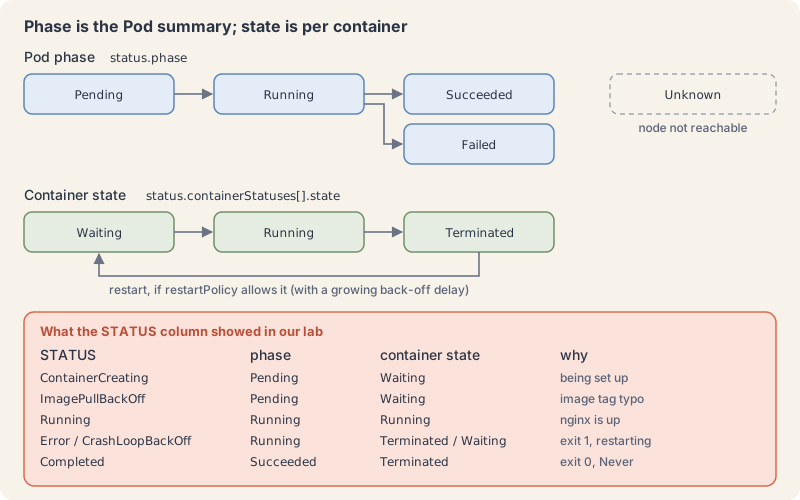
The five phases:
Pending: accepted by the cluster, but at least one container is not running yet. Waiting for a node and pulling images both count.Running: bound to a node, all containers created, at least one running or restarting.Succeeded: all containers exited with success and will not restart.Failed: all containers have terminated and at least one failed.Unknown: the control plane cannot get the state, usually because the node is unreachable.
The three container states are Waiting, Running and Terminated. A Waiting container always has a reason, such as ContainerCreating or ImagePullBackOff. A Terminated one has an exit code.
Whether a stopped container comes back depends on the Pod’s restartPolicy: Always (the default), OnFailure or Never. Restarts are not instant. The kubelet waits 10 seconds, then 20, then 40, doubling up to a cap of 5 minutes, and resets the timer once a container has run for 10 minutes without trouble.
Watch all of that with three small Pods. Save these three files.
once.yaml runs a short script once and stops:
apiVersion: v1
kind: Pod
metadata:
  name: once
  namespace: k8s-from-zero
  labels:
    app.kubernetes.io/name: once
spec:
  restartPolicy: Never
  containers:
    - name: say
      image: busybox:1.37
      command: ["sh", "-c", "echo counting; for i in 1 2 3; do echo $i; sleep 1; done"]
crash.yaml exits with an error every time:
apiVersion: v1
kind: Pod
metadata:
  name: crash
  namespace: k8s-from-zero
  labels:
    app.kubernetes.io/name: crash
spec:
  containers:
    - name: app
      image: busybox:1.37
      command: ["sh", "-c", "echo starting; sleep 2; echo cannot find config; exit 1"]
typo.yaml has a misspelled image tag:
apiVersion: v1
kind: Pod
metadata:
  name: typo
  namespace: k8s-from-zero
  labels:
    app.kubernetes.io/name: typo
spec:
  containers:
    - name: web
      image: nginx:1.29-alpnie
Apply all three at once and watch:
kubectl apply -f once.yaml -f crash.yaml -f typo.yaml
kubectl get pods -n k8s-from-zeroExplain this command
kubectl apply -f once.yaml -f crash.yaml -f typo.yaml
kubectl get pods -n k8s-from-zerokubectlThe Kubernetes command-line client. Subcommands and flags are documented under kubernetes.io/docs/reference/kubectl/.applyApply a configuration to a resource by file name or stdin. The apply docs say the resource is created if it does not exist yet. JSON and YAML are accepted.-fShort form of --filename. The files, directories or URLs that contain the configurations to apply. This command passes the flag three times, once per file. The apply examples also show -f with a file.once.yamlThe first file. The lesson's once Pod runs a short script and sets restartPolicy to Never.-fShort form of --filename. The files, directories or URLs that contain the configurations to apply.crash.yamlThe second file. The lesson's crash Pod exits with status 1.-fShort form of --filename. The files, directories or URLs that contain the configurations to apply.typo.yamlThe third file. The lesson's typo Pod names the image nginx:1.29-alpnie.kubectlThe Kubernetes command-line client. Subcommands and flags are documented under kubernetes.io/docs/reference/kubectl/.getDisplay one or many resources. kubectl get prints a table of the most important information about the resources you name.podsThe resource type to display. kubectl get points you to kubectl api-resources for the full list of types the server supports.-nShort form of --namespace. If present, the namespace scope for this CLI request.k8s-from-zeroThe namespace name passed to --namespace.
About 12 seconds in:
NAME    READY   STATUS              RESTARTS     AGE
crash   0/1     Error               1 (9s ago)   12s
hello   1/1     Running             0            16s
once    0/1     Completed           0            12s
typo    0/1     ContainerCreating   0            12s
About a minute in:
NAME    READY   STATUS             RESTARTS      AGE
crash   0/1     Error              3 (36s ago)   58s
hello   1/1     Running            0             62s
once    0/1     Completed          0             58s
typo    0/1     ImagePullBackOff   0             58s
Now read each one.
once finished. Completed in the STATUS column; the phase underneath is Succeeded:
kubectl logs once -n k8s-from-zero
kubectl get pod once -n k8s-from-zero -o jsonpath="{.status.phase}{\"\n\"}"Explain this command
kubectl logs once -n k8s-from-zero
kubectl get pod once -n k8s-from-zero -o jsonpath="{.status.phase}{\"\n\"}"kubectlThe Kubernetes command-line client. Subcommands and flags are documented under kubernetes.io/docs/reference/kubectl/.logsPrint the logs for a container in a pod or specified resource. If the pod has only one container, the container name is optional.onceThe Pod name.-nShort form of --namespace. If present, the namespace scope for this CLI request.k8s-from-zeroThe namespace name passed to --namespace.kubectlThe Kubernetes command-line client. Subcommands and flags are documented under kubernetes.io/docs/reference/kubectl/.getDisplay one or many resources. kubectl get prints a table of the most important information about the resources you name.podThe resource type to display. kubectl get points you to kubectl api-resources for the full list of types the server supports.onceThe object name.-nShort form of --namespace. If present, the namespace scope for this CLI request.k8s-from-zeroThe namespace name passed to --namespace.-oShort form of --output. It selects the output format. For get, the formats include json, yaml, name, jsonpath, custom-columns and wide.jsonpath="{.status.phase}{\"\n\"}"jsonpath output. {.status.phase} reads the Pod phase. {"\n"} is the newline the JSONPath page shows inside a double-quoted string.
counting
1
2
3
Succeeded
crash keeps restarting. The RESTARTS count climbs and the gaps between restarts grow. While the kubelet waits between attempts, the STATUS column shows CrashLoopBackOff; right after a crash it shows Error. We saw both. The phase stays Running the whole time, because the Pod is still trying:
kubectl get pods crash typo -n k8s-from-zero -o custom-columns='NAME:.metadata.name,PHASE:.status.phase,WAITING-REASON:.status.containerStatuses[0].state.waiting.reason'Explain this command
kubectl get pods crash typo -n k8s-from-zero -o custom-columns='NAME:.metadata.name,PHASE:.status.phase,WAITING-REASON:.status.containerStatuses[0].state.waiting.reason'kubectlThe Kubernetes command-line client. Subcommands and flags are documented under kubernetes.io/docs/reference/kubectl/.getDisplay one or many resources. kubectl get prints a table of the most important information about the resources you name.podsThe resource type to display. kubectl get points you to kubectl api-resources for the full list of types the server supports.crashAn object name. The get examples include listing one or more resources by type and name.typoA second object name of the same type.-nShort form of --namespace. If present, the namespace scope for this CLI request.k8s-from-zeroThe namespace name passed to --namespace.-oShort form of --output. It selects the output format. For get, the formats include json, yaml, name, jsonpath, custom-columns and wide.custom-columns='NAME:.metadata.name,PHASE:.status.phase,WAITING-REASON:.status.containerStatuses[0].state.waiting.reason'custom-columns is an output format. The get examples write each column as a heading, a colon, and a JSONPath. The headings here are NAME, PHASE and WAITING-REASON. The paths are .metadata.name, .status.phase and .status.containerStatuses[0].state.waiting.reason. [0] is the first container status.
NAME    PHASE     WAITING-REASON
crash   Running   <none>
typo    Pending   ImagePullBackOff
describe shows the exit code of the current and the previous run:
kubectl describe pod crash -n k8s-from-zeroExplain this command
kubectl describe pod crash -n k8s-from-zerokubectlThe Kubernetes command-line client. Subcommands and flags are documented under kubernetes.io/docs/reference/kubectl/.describeShow details of a specific resource or group of resources. The describe docs say this includes related resources such as events or controllers.podThe resource type.crashThe object name.-nShort form of --namespace. If present, the namespace scope for this CLI request.k8s-from-zeroThe namespace name passed to --namespace.
...
    State:          Terminated
      Reason:       Error
      Exit Code:    1
...
    Last State:     Terminated
      Reason:       Error
      Exit Code:    1
...
    Restart Count:  3
...
  Warning  BackOff    46s (x3 over 88s)  kubelet            spec.containers{app}: Back-off restarting failed container app in pod crash_k8s-from-zero(93f0b5f7-efd9-4986-baac-95b3623e2505)
To read the log of the run that crashed, use --previous once the container has been restarted:
kubectl logs crash -n k8s-from-zero --previousExplain this command
kubectl logs crash -n k8s-from-zero --previouskubectlThe Kubernetes command-line client. Subcommands and flags are documented under kubernetes.io/docs/reference/kubectl/.logsPrint the logs for a container in a pod or specified resource. If the pod has only one container, the container name is optional.crashThe Pod name.-nShort form of --namespace. If present, the namespace scope for this CLI request.k8s-from-zeroThe namespace name passed to --namespace.--previousIf true, print the logs for the previous instance of the container in a pod if it exists. The logs examples show -p for the previous terminated container.
starting
cannot find config
typo never started. Phase Pending, container Waiting with reason ImagePullBackOff. The events say why:
kubectl describe pod typo -n k8s-from-zeroExplain this command
kubectl describe pod typo -n k8s-from-zerokubectlThe Kubernetes command-line client. Subcommands and flags are documented under kubernetes.io/docs/reference/kubectl/.describeShow details of a specific resource or group of resources. The describe docs say this includes related resources such as events or controllers.podThe resource type.typoThe object name.-nShort form of --namespace. If present, the namespace scope for this CLI request.k8s-from-zeroThe namespace name passed to --namespace.
...
Events:
  Type     Reason     Age                From               Message
  ----     ------     ----               ----               -------
  Normal   Scheduled  58s                default-scheduler  Successfully assigned k8s-from-zero/typo to k8s-ep04-control-plane
  Warning  Failed     32s                kubelet            spec.containers{web}: Failed to pull image "nginx:1.29-alpnie": failed to pull and unpack image "docker.io/library/nginx:1.29-alpnie": ...
  Warning  Failed     32s                kubelet            spec.containers{web}: Error: ErrImagePull
  Normal   BackOff    31s                kubelet            spec.containers{web}: Back-off pulling image "nginx:1.29-alpnie"
  Warning  Failed     31s                kubelet            spec.containers{web}: Error: ImagePullBackOff
On our offline box the message ends in a DNS lookup failure; on a machine with internet access it says the tag was not found. Either way the pattern is the same: ErrImagePull first, then ImagePullBackOff while the kubelet waits to retry.
Clean up. Deleting takes up to 30 seconds per Pod, because Kubernetes first sends the process a polite stop signal and waits for its default grace period before forcing it.
kubectl delete -f once.yaml -f crash.yaml -f typo.yaml
kubectl delete -f pod.yamlExplain this command
kubectl delete -f once.yaml -f crash.yaml -f typo.yaml
kubectl delete -f pod.yamlkubectlThe Kubernetes command-line client. Subcommands and flags are documented under kubernetes.io/docs/reference/kubectl/.deleteDelete resources by file names, stdin, resources and names, or by resources and label selector.-fShort form of --filename. For delete, the file that contains the resource to delete. The delete examples include kubectl delete -f ./pod.json. This command passes the flag three times, once per file.once.yamlThe first file. delete removes the resources that file describes.-fShort form of --filename. For delete, the file that contains the resource to delete. The delete examples include kubectl delete -f ./pod.json.crash.yamlThe second file.-fShort form of --filename. For delete, the file that contains the resource to delete. The delete examples include kubectl delete -f ./pod.json.typo.yamlThe third file.kubectlThe Kubernetes command-line client. Subcommands and flags are documented under kubernetes.io/docs/reference/kubectl/.deleteDelete resources by file names, stdin, resources and names, or by resources and label selector.-fShort form of --filename. For delete, the file that contains the resource to delete. The delete examples include kubectl delete -f ./pod.json.pod.yamlThe file that describes the hello Pod.
pod "once" deleted from k8s-from-zero namespace
pod "crash" deleted from k8s-from-zero namespace
pod "typo" deleted from k8s-from-zero namespace
pod "hello" deleted from k8s-from-zero namespace
Keep the k8s-from-zero namespace; the next episodes use it.
When it goes wrong
- The namespace does not exist. Symptom:
Error from server (NotFound): error when creating "pod.yaml": namespaces "k8s-form-zero" not found. The cluster will not create a namespace for you. Fix the spelling, or create it withkubectl create namespace. - A misspelled field. Symptom:
strict decoding error: unknown field "spec.contianers". kubectl validates strictly by default, so typos in field names are rejected instead of silently ignored. Check spelling withkubectl explain pod.spec.containers. - Broken indentation. Symptom:
error converting YAML to JSON: yaml: line 11: mapping values are not allowed in this context. The line number points at the bad indent or the line after it. Line up sibling keys exactly, use spaces only. - ImagePullBackOff. Symptom: STATUS
ErrImagePullthenImagePullBackOff, phasePending. Read theFailedevent inkubectl describe pod: a wrong tag, a private registry without credentials, or no network. Fix the image and apply again. Part 21 goes deeper on every pod failure. - CrashLoopBackOff. Symptom: RESTARTS climbing, STATUS alternating
ErrorandCrashLoopBackOff. The container starts and then exits. Readkubectl logs <pod> --previousand the exit code indescribe. - No shell in the image. Symptom:
exec: "bash": executable file not found in $PATH. Small images shipshor nothing. Trysh; for images with no shell at all, part 16 shows ephemeral debug containers.
Cheat sheet
| Task | Command or field | Note |
|---|---|---|
| Create the series namespace | kubectl create namespace k8s-from-zero |
once per cluster |
| Create or update from a file | kubectl apply -f pod.yaml |
prints created, configured or unchanged |
| List Pods in a namespace | kubectl get pods -n k8s-from-zero |
add -o wide for IP and node |
| Watch Pods change | kubectl get pods -n k8s-from-zero -w |
Ctrl+C to stop |
| Full detail and events | kubectl describe pod hello -n k8s-from-zero |
read Events bottom section first |
| Container log | kubectl logs hello -n k8s-from-zero |
-f follows, --previous reads the last crashed run |
| Run a command inside | kubectl exec hello -n k8s-from-zero -- nginx -v |
-it ... -- sh for a shell |
| Tunnel a port to your laptop | kubectl port-forward pod/hello 8080:80 -n k8s-from-zero |
debugging only |
| Read one field | kubectl get pod hello -n k8s-from-zero -o jsonpath="{.status.phase}" |
part 5 covers JSONPath |
| See the stored object | kubectl get pod hello -n k8s-from-zero -o yaml |
includes status |
| Look up a field’s meaning | kubectl explain pod.spec.restartPolicy |
works offline from the API schema |
| Restart rule | spec.restartPolicy |
Always (default), OnFailure, Never |
| Delete what a file created | kubectl delete -f pod.yaml |
waits up to the 30 s grace period |
| Phase vs STATUS | status.phase |
STATUS column is a kubectl summary, not the phase |
apiVersion: v1
kind: Pod
metadata:
  name: hello
  namespace: k8s-from-zero
  labels:
    app.kubernetes.io/name: hello
spec:
  containers:
    - name: web
      image: nginx:1.29-alpine
      ports:
        - containerPort: 80
Recap and what is next
- A Pod wraps one or more containers with one IP, one hostname and one node.
- Every manifest has
apiVersion,kind,metadataandspec; the cluster addsstatus. get,describe,logs,execandport-forwardare your five ways to look at a Pod.- The phase (
Pending,Running,Succeeded,Failed,Unknown) differs from the STATUS column and from each container’s state. - Pods are disposable: delete one and its changes are gone.
Next: Kubernetes from Zero, part 5: kubectl essentials.
Command explanations and quoted passages in this lesson come from or adapt the kubectl reference and the Kubernetes documentation, © The Kubernetes Authors, licensed under CC BY 4.0. We shortened and edited some passages. Kubernetes® is a registered trademark of The Linux Foundation. aitamer.news is not affiliated with or endorsed by The Linux Foundation or the CNCF.
The Campfire
CommentsThanks. Your comment is waiting for the desk. Once it is approved it appears here within about a minute.
Add a comment