
In part 7 a Deployment kept three Pods running and replaced them during rollouts. Every replacement Pod got a new IP address, so nothing can rely on a Pod’s IP. This episode adds the object that fixes that: a Service, one stable name and virtual IP in front of a changing set of Pods. By the end you will call three Pods through one name, see how the Service finds them, reach them from outside the cluster, and know which of the five Service flavours to pick. You need the kind cluster from part 3 and the k8s-from-zero namespace, set as your context namespace (part 6). We tested on kind v0.33.0 (node image v1.37.0) with kubectl v1.37.2, with kube-proxy in nftables mode for a reason explained under When it goes wrong.
What you will build
You will run a Deployment of three small web servers, each answering with its own Pod name, plus a client Pod to test from. In front of the web Pods you will put a ClusterIP Service and call it by name, then add a NodePort, a LoadBalancer, a headless Service and an ExternalName, and break one on purpose.
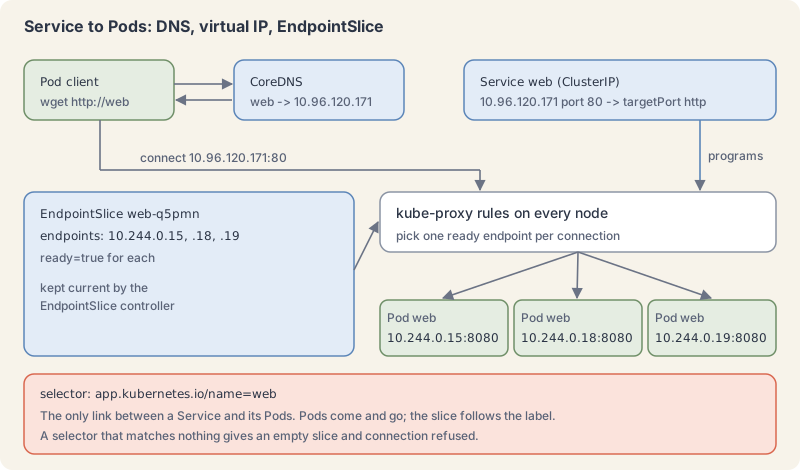
A Service is a stable front door chosen by labels
The Service page describes a Service as a way to expose an application running as one or more Pods. A Service has three parts you write:
- a selector: labels, exactly like the Deployment selector in part 7. Every ready Pod with those labels becomes a backend.
- ports: the
portclients connect to, and thetargetPorton the Pod.targetPortcan be a number or the name of a container port; it defaults to the same value asport. - a type:
ClusterIP(the default),NodePort,LoadBalancerorExternalName.
Kubernetes gives the Service a virtual IP from the Service range (on our kind cluster, 10.96.0.0/16) and a DNS name. Both stay the same for the life of the Service, however often its Pods change.
Behind the scenes, the control plane keeps an EndpointSlice for each Service: a list of the IPs and ports of the matching Pods, with a ready flag for each. The EndpointSlices page says each slice holds no more than 100 endpoints by default; bigger Services get several slices. On every node, kube-proxy (part 2) watches Services and EndpointSlices and programs packet rules so that a connection to the virtual IP lands on one ready endpoint. Part 62 opens up those rules.
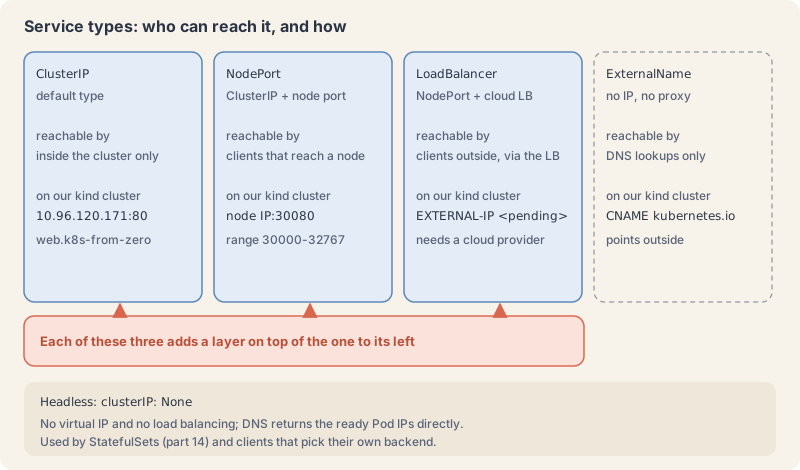
Each Service type adds a way in
- ClusterIP: reachable only from inside the cluster. This is what Pods use to talk to each other, and what most Services are.
- NodePort: a ClusterIP plus a port opened on every node, from the range 30000 to 32767 by default. Anything that can reach a node’s IP can reach the Service. Fine for labs; in production you rarely expose nodes directly.
- LoadBalancer: a NodePort plus an external load balancer that a cloud provider creates for you. On a cloud cluster (parts 39 to 52) you get a public address. On kind there is no cloud, so the address stays
<pending>unless you run kind’s optional cloud-provider-kind helper, which we did not install. - ExternalName: no IP and no proxying at all. The cluster DNS answers the Service’s name with a CNAME record pointing to the host name you give. Useful to give an outside database a name inside the cluster.
A fifth flavour is a setting on a ClusterIP Service: a headless Service, with clusterIP: None. It gets no virtual IP; its DNS name returns the IPs of the ready Pods directly, so the client chooses. StatefulSets (part 14) depend on it.
For HTTP from the internet, you will usually put one Ingress or Gateway (part 19) in front of many ClusterIP Services instead of one LoadBalancer per Service.
DNS names follow the namespace
The cluster DNS server, CoreDNS, gives every Service an A record named <service>.<namespace>.svc.cluster.local (DNS for Services and Pods). Each Pod’s /etc/resolv.conf lists search domains starting with its own namespace, so short names work.
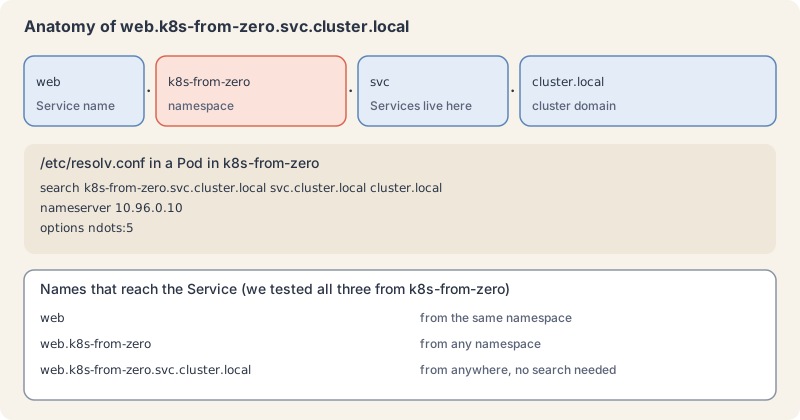
From the same namespace, web is enough. From another namespace, use web.k8s-from-zero. The full name works anywhere in the cluster. This is the DNS rule part 6 promised.
Try it: put a Service in front of a Deployment
- Run the web Pods and a client. Save as
web.yaml. We usebusyboxwith its small built-in web server so each Pod can answer with its own name:
apiVersion: apps/v1
kind: Deployment
metadata:
  name: web
  namespace: k8s-from-zero
  labels:
    app.kubernetes.io/name: web
spec:
  replicas: 3
  selector:
    matchLabels:
      app.kubernetes.io/name: web
  template:
    metadata:
      labels:
        app.kubernetes.io/name: web
    spec:
      containers:
        - name: web
          image: busybox:1.37
          # serve a page that names the Pod, so you can see which one answered
          command: ["sh", "-c", "mkdir -p /www && echo \"hello from $(hostname)\" > /www/index.html && httpd -f -p 8080 -h /www"]
          ports:
            - name: http
              containerPort: 8080
Save the test Pod as client.yaml:
apiVersion: v1
kind: Pod
metadata:
  name: client
  namespace: k8s-from-zero
spec:
  containers:
    - name: client
      image: busybox:1.37
command: ["sleep", "3600"]kubectl apply -f web.yaml -f client.yaml
kubectl rollout status deployment/web --timeout=90s
kubectl get pods -o wideExplain this command
kubectl apply -f web.yaml -f client.yaml
kubectl rollout status deployment/web --timeout=90s
kubectl get pods -o widekubectlThe Kubernetes command-line client. Subcommands and flags are documented under kubernetes.io/docs/reference/kubectl/.applyApply a configuration to a resource by file name or stdin. The apply docs say the resource is created if it does not exist yet. JSON and YAML are accepted.-fShort form of --filename. The file, directory or URL that contains the configuration to apply.web.yamlThe file named by --filename. apply creates the objects or updates them to match this file.-fShort form of --filename. The file, directory or URL that contains the configuration to apply.client.yamlThe file named by --filename. apply creates the objects or updates them to match this file.kubectlThe Kubernetes command-line client. Subcommands and flags are documented under kubernetes.io/docs/reference/kubectl/.rolloutThe command group for rollout actions.statusShow the status of a rollout and wait until it finishes.deployment/webThe resource written as type/name: deployment/web.--timeout=90sHow long to wait before giving up. This command passes 90s.kubectlThe Kubernetes command-line client. Subcommands and flags are documented under kubernetes.io/docs/reference/kubectl/.getDisplay one or many resources. kubectl get prints a table of the most important information about the resources you name.podsThe resource type to display. kubectl get points you to kubectl api-resources for the full list of types the server supports.-oShort form of --output. It selects the output format. For get, the formats include json, yaml, name, jsonpath, custom-columns and wide.wideAn output format. The get examples say wide adds more information, such as the node name. For Pods the lesson's table adds IP, NODE, NOMINATED NODE and READINESS GATES.
deployment.apps/web created
pod/client created
...
deployment "web" successfully rolled out
NAME                  READY   STATUS    RESTARTS   AGE   IP            NODE                     NOMINATED NODE   READINESS GATES
client                1/1     Running   0          0s    10.244.0.10   k8s-ep07-control-plane   <none>           <none>
web-9684f4454-fjk67   1/1     Running   0          0s    10.244.0.11   k8s-ep07-control-plane   <none>           <none>
web-9684f4454-lqswh   1/1     Running   0          0s    10.244.0.12   k8s-ep07-control-plane   <none>           <none>
web-9684f4454-qds9w   1/1     Running   0          0s    10.244.0.9    k8s-ep07-control-plane   <none>           <none>
You can already reach one Pod by its IP. Try it, then forget that IP, because it will not last:
kubectl exec client -- wget -qO- -T 3 http://10.244.0.11:8080Explain this command
kubectl exec client -- wget -qO- -T 3 http://10.244.0.11:8080kubectlThe Kubernetes command-line client. Subcommands and flags are documented under kubernetes.io/docs/reference/kubectl/.execExecute a command in a container. The synopsis is kubectl exec (POD | TYPE/NAME) [-c CONTAINER] [flags] -- COMMAND [args...].clientThe test Pod named client. The lesson uses it to call the web Pods.--Ends kubectl's flags. The exec examples say to use two dashes so the command's own flags are read as that command's flags.wgetThe command run in the container. It fetches a URL.-qO-A flag of the command inside the container: -qO-.-TA flag of the command inside the container: -T.3A number passed to the command inside the container.http://10.244.0.11:8080The URL requested inside the container: http://10.244.0.11:8080.
hello from web-9684f4454-fjk67- Create the Service. Save as
web-svc.yaml:
apiVersion: v1
kind: Service
metadata:
  name: web
  namespace: k8s-from-zero
spec:
  type: ClusterIP
  selector:
    app.kubernetes.io/name: web
  ports:
    - name: http
      port: 80          # what clients connect to
targetPort: http # the named container port, 8080kubectl apply -f web-svc.yaml
kubectl get service webExplain this command
kubectl apply -f web-svc.yaml
kubectl get service webkubectlThe Kubernetes command-line client. Subcommands and flags are documented under kubernetes.io/docs/reference/kubectl/.applyApply a configuration to a resource by file name or stdin. The apply docs say the resource is created if it does not exist yet. JSON and YAML are accepted.-fShort form of --filename. The file, directory or URL that contains the configuration to apply.web-svc.yamlThe file named by --filename. apply creates the objects or updates them to match this file.kubectlThe Kubernetes command-line client. Subcommands and flags are documented under kubernetes.io/docs/reference/kubectl/.getDisplay one or many resources. kubectl get prints a table of the most important information about the resources you name.serviceThe resource type to display. kubectl get points you to kubectl api-resources for the full list of types the server supports.webThe object name.
service/web created
NAME   TYPE        CLUSTER-IP      EXTERNAL-IP   PORT(S)   AGE
web ClusterIP 10.96.120.171 <none> 80/TCP 0s- See what the Service found.
kubectl describe service web
kubectl get endpointslices -l kubernetes.io/service-name=webExplain this command
kubectl describe service web
kubectl get endpointslices -l kubernetes.io/service-name=webkubectlThe Kubernetes command-line client. Subcommands and flags are documented under kubernetes.io/docs/reference/kubectl/.describeShow details of a specific resource or group of resources. The describe docs say this includes related resources such as events or controllers.serviceThe resource type.webThe object name.kubectlThe Kubernetes command-line client. Subcommands and flags are documented under kubernetes.io/docs/reference/kubectl/.getDisplay one or many resources. kubectl get prints a table of the most important information about the resources you name.endpointslicesThe resource type to display. kubectl get points you to kubectl api-resources for the full list of types the server supports.-lShort form of --selector. A label query. The get docs say it supports '=', '==', '!=', 'in' and 'notin', and that matching objects must satisfy every constraint.kubernetes.io/service-name=webThe label query passed to --selector: kubernetes.io/service-name=web.
Name:                     web
Namespace:                k8s-from-zero
...
Selector:                 app.kubernetes.io/name=web
Type:                     ClusterIP
...
IP:                       10.96.120.171
IPs:                      10.96.120.171
Port:                     http  80/TCP
TargetPort:               http/TCP
Endpoints:                10.244.0.9:8080,10.244.0.12:8080,10.244.0.11:8080
...
NAME        ADDRESSTYPE   PORTS   ENDPOINTS                            AGE
web-q5pmn   IPv4          8080    10.244.0.9,10.244.0.12,10.244.0.11   0s
The three endpoints are the three Pod IPs from step 1, on the container port.
- Call it by name, several times.
for i in 1 2 3 4 5 6; do kubectl exec client -- wget -qO- -T 3 http://web; doneExplain this command
for i in 1 2 3 4 5 6; do kubectl exec client -- wget -qO- -T 3 http://web; doneforShell. Starts a for loop.iThe loop variable for the six calls to http://web. The lesson shows all three web Pods answering.inShell. Names the list a for loop walks.1A numeric argument in this command.2A numeric argument in this command.3A numeric argument in this command.4A numeric argument in this command.5A numeric argument in this command.6A numeric argument in this command.;Shell. Runs the next command after this one finishes, whatever its exit status.doShell. Starts the body of a for, while or if.kubectlThe Kubernetes command-line client. Subcommands and flags are documented under kubernetes.io/docs/reference/kubectl/.execExecute a command in a container. The synopsis is kubectl exec (POD | TYPE/NAME) [-c CONTAINER] [flags] -- COMMAND [args...].clientThe test Pod named client. The lesson uses it to call the web Pods.--Ends kubectl's flags. The exec examples say to use two dashes so the command's own flags are read as that command's flags.wgetThe command run in the container. It fetches a URL.-qO-A flag of the command inside the container: -qO-.-TA flag of the command inside the container: -T.3A number passed to the command inside the container.http://webThe URL requested inside the container: http://web.;Shell. Runs the next command after this one finishes, whatever its exit status.doneShell. Ends a for, while or until loop.
hello from web-9684f4454-lqswh
hello from web-9684f4454-qds9w
hello from web-9684f4454-qds9w
hello from web-9684f4454-qds9w
hello from web-9684f4454-fjk67
hello from web-9684f4454-qds9w
All three Pods answered. The choice is per connection and random; it is not a strict round robin.
- Look at the DNS side.
kubectl exec client -- cat /etc/resolv.conf
kubectl exec client -- nslookup web.k8s-from-zero.svc.cluster.local
kubectl exec client -- wget -qO- -T 3 http://web.k8s-from-zero
kubectl get svc -n kube-system kube-dnsExplain this command
kubectl exec client -- cat /etc/resolv.conf
kubectl exec client -- nslookup web.k8s-from-zero.svc.cluster.local
kubectl exec client -- wget -qO- -T 3 http://web.k8s-from-zero
kubectl get svc -n kube-system kube-dnskubectlThe Kubernetes command-line client. Subcommands and flags are documented under kubernetes.io/docs/reference/kubectl/.execExecute a command in a container. The synopsis is kubectl exec (POD | TYPE/NAME) [-c CONTAINER] [flags] -- COMMAND [args...].clientThe test Pod named client. The lesson uses it to call the web Pods.--Ends kubectl's flags. The exec examples say to use two dashes so the command's own flags are read as that command's flags.catShell. Writes the named files to standard output./etc/resolv.confA path inside the container: /etc/resolv.conf.kubectlThe Kubernetes command-line client. Subcommands and flags are documented under kubernetes.io/docs/reference/kubectl/.execExecute a command in a container. The synopsis is kubectl exec (POD | TYPE/NAME) [-c CONTAINER] [flags] -- COMMAND [args...].clientThe test Pod named client. The lesson uses it to call the web Pods.--Ends kubectl's flags. The exec examples say to use two dashes so the command's own flags are read as that command's flags.nslookupThe command run in the container. It looks up a DNS name.web.k8s-from-zero.svc.cluster.localAn argument of the command inside the container: web.k8s-from-zero.svc.cluster.local.kubectlThe Kubernetes command-line client. Subcommands and flags are documented under kubernetes.io/docs/reference/kubectl/.execExecute a command in a container. The synopsis is kubectl exec (POD | TYPE/NAME) [-c CONTAINER] [flags] -- COMMAND [args...].clientThe test Pod named client. The lesson uses it to call the web Pods.--Ends kubectl's flags. The exec examples say to use two dashes so the command's own flags are read as that command's flags.wgetThe command run in the container. It fetches a URL.-qO-A flag of the command inside the container: -qO-.-TA flag of the command inside the container: -T.3A number passed to the command inside the container.http://web.k8s-from-zeroThe URL requested inside the container: http://web.k8s-from-zero.kubectlThe Kubernetes command-line client. Subcommands and flags are documented under kubernetes.io/docs/reference/kubectl/.getDisplay one or many resources. kubectl get prints a table of the most important information about the resources you name.svcThe resource type to display. kubectl get points you to kubectl api-resources for the full list of types the server supports.-nShort form of --namespace. If present, the namespace scope for this CLI request.kube-systemThe namespace name passed to --namespace.kube-dnsThe cluster DNS Service in kube-system. The lesson's resolv.conf nameserver is its ClusterIP, 10.96.0.10.
search k8s-from-zero.svc.cluster.local svc.cluster.local cluster.local
nameserver 10.96.0.10
options ndots:5
Server:		10.96.0.10
Address:	10.96.0.10:53

Name:	web.k8s-from-zero.svc.cluster.local
Address: 10.96.120.171

hello from web-9684f4454-qds9w
NAME       TYPE        CLUSTER-IP   EXTERNAL-IP   PORT(S)                  AGE
kube-dns   ClusterIP   10.96.0.10   <none>        53/UDP,53/TCP,9153/TCP   75s
The name server in every Pod is itself a Service, kube-dns in kube-system, in front of the CoreDNS Pods.
- Replace every Pod and keep the address.
kubectl delete pod -l app.kubernetes.io/name=web --wait=false
kubectl get pods -l app.kubernetes.io/name=web -o wide
kubectl get service web
kubectl exec client -- wget -qO- -T 3 http://webExplain this command
kubectl delete pod -l app.kubernetes.io/name=web --wait=false
kubectl get pods -l app.kubernetes.io/name=web -o wide
kubectl get service web
kubectl exec client -- wget -qO- -T 3 http://webkubectlThe Kubernetes command-line client. Subcommands and flags are documented under kubernetes.io/docs/reference/kubectl/.deleteDelete resources by file names, stdin, resources and names, or by resources and label selector.podThe resource type.-lShort form of --selector. A label query. The get docs say it supports '=', '==', '!=', 'in' and 'notin', and that matching objects must satisfy every constraint.app.kubernetes.io/name=webThe label query passed to --selector: app.kubernetes.io/name=web.--wait=falseDo not wait for the objects to finish deleting. The delete docs say --wait defaults to true.kubectlThe Kubernetes command-line client. Subcommands and flags are documented under kubernetes.io/docs/reference/kubectl/.getDisplay one or many resources. kubectl get prints a table of the most important information about the resources you name.podsThe resource type to display. kubectl get points you to kubectl api-resources for the full list of types the server supports.-lShort form of --selector. A label query. The get docs say it supports '=', '==', '!=', 'in' and 'notin', and that matching objects must satisfy every constraint.app.kubernetes.io/name=webThe label query passed to --selector: app.kubernetes.io/name=web.-oShort form of --output. It selects the output format. For get, the formats include json, yaml, name, jsonpath, custom-columns and wide.wideAn output format. The get examples say wide adds more information, such as the node name. For Pods the lesson's table adds IP, NODE, NOMINATED NODE and READINESS GATES.kubectlThe Kubernetes command-line client. Subcommands and flags are documented under kubernetes.io/docs/reference/kubectl/.getDisplay one or many resources. kubectl get prints a table of the most important information about the resources you name.serviceThe resource type to display. kubectl get points you to kubectl api-resources for the full list of types the server supports.webThe object name.kubectlThe Kubernetes command-line client. Subcommands and flags are documented under kubernetes.io/docs/reference/kubectl/.execExecute a command in a container. The synopsis is kubectl exec (POD | TYPE/NAME) [-c CONTAINER] [flags] -- COMMAND [args...].clientThe test Pod named client. The lesson uses it to call the web Pods.--Ends kubectl's flags. The exec examples say to use two dashes so the command's own flags are read as that command's flags.wgetThe command run in the container. It fetches a URL.-qO-A flag of the command inside the container: -qO-.-TA flag of the command inside the container: -T.3A number passed to the command inside the container.http://webThe URL requested inside the container: http://web.
pod "web-9684f4454-fjk67" deleted from k8s-from-zero namespace
pod "web-9684f4454-lqswh" deleted from k8s-from-zero namespace
pod "web-9684f4454-qds9w" deleted from k8s-from-zero namespace
NAME                  READY   STATUS        RESTARTS   AGE   IP            ...
web-9684f4454-88996   1/1     Running       0          6s    10.244.0.15   ...
web-9684f4454-fjk67   1/1     Terminating   0          17s   10.244.0.11   ...
web-9684f4454-jdpwg   1/1     Running       0          6s    10.244.0.13   ...
web-9684f4454-lqswh   1/1     Terminating   0          17s   10.244.0.12   ...
web-9684f4454-qds9w   1/1     Terminating   0          17s   10.244.0.9    ...
web-9684f4454-rgwjl   1/1     Running       0          6s    10.244.0.14   ...
NAME   TYPE        CLUSTER-IP      EXTERNAL-IP   PORT(S)   AGE
web    ClusterIP   10.96.120.171   <none>        80/TCP    16s
hello from web-9684f4454-88996
New Pods, new IPs, same Service IP, and the call still works. The old Pods sit in Terminating for up to 30 seconds because the shell that starts the busybox web server runs as process 1 and ignores the stop signal, so Kubernetes waits out the grace period; part 10 explains graceful shutdown.
- Scale and watch the slice follow.
kubectl scale deployment web --replicas=1
kubectl get endpointslices -l kubernetes.io/service-name=web
kubectl scale deployment web --replicas=3
kubectl get endpointslices -l kubernetes.io/service-name=webExplain this command
kubectl scale deployment web --replicas=1
kubectl get endpointslices -l kubernetes.io/service-name=web
kubectl scale deployment web --replicas=3
kubectl get endpointslices -l kubernetes.io/service-name=webkubectlThe Kubernetes command-line client. Subcommands and flags are documented under kubernetes.io/docs/reference/kubectl/.scaleSet a new size for a deployment, replica set, replication controller, or stateful set.deploymentThe resource type.webThe object name.--replicas=1The number of desired replicas. This command passes 1.kubectlThe Kubernetes command-line client. Subcommands and flags are documented under kubernetes.io/docs/reference/kubectl/.getDisplay one or many resources. kubectl get prints a table of the most important information about the resources you name.endpointslicesThe resource type to display. kubectl get points you to kubectl api-resources for the full list of types the server supports.-lShort form of --selector. A label query. The get docs say it supports '=', '==', '!=', 'in' and 'notin', and that matching objects must satisfy every constraint.kubernetes.io/service-name=webThe label query passed to --selector: kubernetes.io/service-name=web.kubectlThe Kubernetes command-line client. Subcommands and flags are documented under kubernetes.io/docs/reference/kubectl/.scaleSet a new size for a deployment, replica set, replication controller, or stateful set.deploymentThe resource type.webThe object name.--replicas=3The number of desired replicas. This command passes 3.kubectlThe Kubernetes command-line client. Subcommands and flags are documented under kubernetes.io/docs/reference/kubectl/.getDisplay one or many resources. kubectl get prints a table of the most important information about the resources you name.endpointslicesThe resource type to display. kubectl get points you to kubectl api-resources for the full list of types the server supports.-lShort form of --selector. A label query. The get docs say it supports '=', '==', '!=', 'in' and 'notin', and that matching objects must satisfy every constraint.kubernetes.io/service-name=webThe label query passed to --selector: kubernetes.io/service-name=web.
deployment.apps/web scaled
NAME        ADDRESSTYPE   PORTS   ENDPOINTS     AGE
web-q5pmn   IPv4          8080    10.244.0.15   2m5s
deployment.apps/web scaled
NAME        ADDRESSTYPE   PORTS   ENDPOINTS                             AGE
web-q5pmn   IPv4          8080    10.244.0.15,10.244.0.19,10.244.0.18   2m5s
(We waited for the old Pods to finish terminating before the first get.) To see the ready flag and which Pod each endpoint is, read the slice with JSONPath (part 5):
kubectl get endpointslice -l kubernetes.io/service-name=web -o jsonpath='{range .items[0].endpoints[*]}{.addresses[0]}{" ready="}{.conditions.ready}{" pod="}{.targetRef.name}{"\n"}{end}'Explain this command
kubectl get endpointslice -l kubernetes.io/service-name=web -o jsonpath='{range .items[0].endpoints[*]}{.addresses[0]}{" ready="}{.conditions.ready}{" pod="}{.targetRef.name}{"\n"}{end}'kubectlThe Kubernetes command-line client. Subcommands and flags are documented under kubernetes.io/docs/reference/kubectl/.getDisplay one or many resources. kubectl get prints a table of the most important information about the resources you name.endpointsliceThe resource type to display. kubectl get points you to kubectl api-resources for the full list of types the server supports.-lShort form of --selector. A label query. The get docs say it supports '=', '==', '!=', 'in' and 'notin', and that matching objects must satisfy every constraint.kubernetes.io/service-name=webThe label query passed to --selector: kubernetes.io/service-name=web.-oShort form of --output. It selects the output format. For get, the formats include json, yaml, name, jsonpath, custom-columns and wide.jsonpath='{range .items[0].endpoints[*]}{.addresses[0]}{" ready="}{.conditions.ready}{" pod="}{.targetRef.name}{"\n"}{end}'jsonpath is an output format. A template is JSONPath expressions in curly braces. The JSONPath page says a double-quoted string inserts text, and its example uses a quoted backslash-n for a newline. This token is the template in the lesson command.
10.244.0.15  ready=true  pod=web-9684f4454-88996
10.244.0.19  ready=true  pod=web-9684f4454-rq74b
10.244.0.18 ready=true pod=web-9684f4454-xh9g9- Open a NodePort. Save as
web-nodeport.yaml:
apiVersion: v1
kind: Service
metadata:
  name: web-nodeport
  namespace: k8s-from-zero
spec:
  type: NodePort
  selector:
    app.kubernetes.io/name: web
  ports:
    - name: http
      port: 80
      targetPort: http
nodePort: 30080 # leave this out to get a random port from the rangekubectl apply -f web-nodeport.yaml
kubectl get service web-nodeport
NODE_IP=$(kubectl get node k8s-ep07-control-plane -o jsonpath="{.status.addresses[0].address}")
echo $NODE_IP
for i in 1 2 3; do curl -s -m 5 http://$NODE_IP:30080; doneExplain this command
kubectl apply -f web-nodeport.yaml
kubectl get service web-nodeport
NODE_IP=$(kubectl get node k8s-ep07-control-plane -o jsonpath="{.status.addresses[0].address}")
echo $NODE_IP
for i in 1 2 3; do curl -s -m 5 http://$NODE_IP:30080; donekubectlThe Kubernetes command-line client. Subcommands and flags are documented under kubernetes.io/docs/reference/kubectl/.applyApply a configuration to a resource by file name or stdin. The apply docs say the resource is created if it does not exist yet. JSON and YAML are accepted.-fShort form of --filename. The file, directory or URL that contains the configuration to apply.web-nodeport.yamlThe file named by --filename. apply creates the objects or updates them to match this file.kubectlThe Kubernetes command-line client. Subcommands and flags are documented under kubernetes.io/docs/reference/kubectl/.getDisplay one or many resources. kubectl get prints a table of the most important information about the resources you name.serviceThe resource type to display. kubectl get points you to kubectl api-resources for the full list of types the server supports.web-nodeportThe object name.NODE_IP=$(kubectl get node k8s-ep07-control-plane -o jsonpath="{.status.addresses[0].address}")A shell variable assignment on its own line. It stores the node's first address, read by the jsonpath, and the next lines use it as $NODE_IP.echoShell. Writes its arguments to standard output, then a newline.$NODE_IPThe kind node address stored on the previous line. The lesson prints it, then curls port 30080 on it.forShell. Starts a for loop.iThe loop variable for the three curls to the NodePort on port 30080.inShell. Names the list a for loop walks.1A numeric argument in this command.2A numeric argument in this command.3A numeric argument in this command.;Shell. Runs the next command after this one finishes, whatever its exit status.doShell. Starts the body of a for, while or if.curlThe curl client.-sThe -s flag on the curl to the NodePort. The lesson prints three hello lines from the web Pods.-mThe -m flag on that curl, passed 5, in the loop that calls the NodePort.5A numeric argument in this command.http://$NODE_IP:30080The NodePort address. web-nodeport.yaml sets nodePort 30080, and the lesson curls it on the kind node IP.;Shell. Runs the next command after this one finishes, whatever its exit status.doneShell. Ends a for, while or until loop.
service/web-nodeport created
NAME           TYPE       CLUSTER-IP    EXTERNAL-IP   PORT(S)        AGE
web-nodeport   NodePort   10.96.68.20   <none>        80:30080/TCP   0s
172.18.0.3
hello from web-9684f4454-v4dcb
hello from web-9684f4454-88996
hello from web-9684f4454-fggfn
Use your own node name (kubectl get nodes). The kind node is a Docker container (part 3), so its IP is reachable from a Linux host. On Docker Desktop for Mac or Windows it is not; use step 12’s port-forward there, or kind’s extraPortMappings setting when you create the cluster.
- Ask for a LoadBalancer. Save
web-lb.yamlas a copy of the NodePort file withname: web-lb,type: LoadBalancerand nonodePortline:
kubectl apply -f web-lb.yaml
kubectl get service web-lbExplain this command
kubectl apply -f web-lb.yaml
kubectl get service web-lbkubectlThe Kubernetes command-line client. Subcommands and flags are documented under kubernetes.io/docs/reference/kubectl/.applyApply a configuration to a resource by file name or stdin. The apply docs say the resource is created if it does not exist yet. JSON and YAML are accepted.-fShort form of --filename. The file, directory or URL that contains the configuration to apply.web-lb.yamlThe file named by --filename. apply creates the objects or updates them to match this file.kubectlThe Kubernetes command-line client. Subcommands and flags are documented under kubernetes.io/docs/reference/kubectl/.getDisplay one or many resources. kubectl get prints a table of the most important information about the resources you name.serviceThe resource type to display. kubectl get points you to kubectl api-resources for the full list of types the server supports.web-lbThe object name.
service/web-lb created
NAME     TYPE           CLUSTER-IP     EXTERNAL-IP   PORT(S)        AGE
web-lb   LoadBalancer   10.96.50.128   <pending>     80:30471/TCP   5s
<pending> is the expected answer on kind: nothing in the cluster creates load balancers. Note that a NodePort (30471) was still assigned. The Service already works as a NodePort and a ClusterIP; only the outside piece is missing.
- Go headless. Save as
web-headless.yaml:
apiVersion: v1
kind: Service
metadata:
  name: web-headless
  namespace: k8s-from-zero
spec:
  clusterIP: None
  selector:
    app.kubernetes.io/name: web
  ports:
    - name: http
      port: 8080
targetPort: httpkubectl apply -f web-headless.yaml
kubectl get service web-headless
kubectl exec client -- nslookup web-headless.k8s-from-zero.svc.cluster.localExplain this command
kubectl apply -f web-headless.yaml
kubectl get service web-headless
kubectl exec client -- nslookup web-headless.k8s-from-zero.svc.cluster.localkubectlThe Kubernetes command-line client. Subcommands and flags are documented under kubernetes.io/docs/reference/kubectl/.applyApply a configuration to a resource by file name or stdin. The apply docs say the resource is created if it does not exist yet. JSON and YAML are accepted.-fShort form of --filename. The file, directory or URL that contains the configuration to apply.web-headless.yamlThe file named by --filename. apply creates the objects or updates them to match this file.kubectlThe Kubernetes command-line client. Subcommands and flags are documented under kubernetes.io/docs/reference/kubectl/.getDisplay one or many resources. kubectl get prints a table of the most important information about the resources you name.serviceThe resource type to display. kubectl get points you to kubectl api-resources for the full list of types the server supports.web-headlessThe object name.kubectlThe Kubernetes command-line client. Subcommands and flags are documented under kubernetes.io/docs/reference/kubectl/.execExecute a command in a container. The synopsis is kubectl exec (POD | TYPE/NAME) [-c CONTAINER] [flags] -- COMMAND [args...].clientThe test Pod named client. The lesson uses it to call the web Pods.--Ends kubectl's flags. The exec examples say to use two dashes so the command's own flags are read as that command's flags.nslookupThe command run in the container. It looks up a DNS name.web-headless.k8s-from-zero.svc.cluster.localAn argument of the command inside the container: web-headless.k8s-from-zero.svc.cluster.local.
service/web-headless created
NAME           TYPE        CLUSTER-IP   EXTERNAL-IP   PORT(S)    AGE
web-headless   ClusterIP   None         <none>        8080/TCP   0s
Server:		10.96.0.10
Address:	10.96.0.10:53

Name:	web-headless.k8s-from-zero.svc.cluster.local
Address: 10.244.0.15
Name:	web-headless.k8s-from-zero.svc.cluster.local
Address: 10.244.0.16
Name:	web-headless.k8s-from-zero.svc.cluster.local
Address: 10.244.0.17
No cluster IP; the name returns the three Pod IPs. Use the full name with busybox nslookup; with a short name it also prints a line for every search domain it tried.
- Point a name outside the cluster. Save as
docs-external.yaml:
apiVersion: v1
kind: Service
metadata:
  name: docs
  namespace: k8s-from-zero
spec:
  type: ExternalName
externalName: kubernetes.iokubectl apply -f docs-external.yaml
kubectl get service docs
kubectl exec client -- nslookup -type=CNAME docs.k8s-from-zero.svc.cluster.localExplain this command
kubectl apply -f docs-external.yaml
kubectl get service docs
kubectl exec client -- nslookup -type=CNAME docs.k8s-from-zero.svc.cluster.localkubectlThe Kubernetes command-line client. Subcommands and flags are documented under kubernetes.io/docs/reference/kubectl/.applyApply a configuration to a resource by file name or stdin. The apply docs say the resource is created if it does not exist yet. JSON and YAML are accepted.-fShort form of --filename. The file, directory or URL that contains the configuration to apply.docs-external.yamlThe file named by --filename. apply creates the objects or updates them to match this file.kubectlThe Kubernetes command-line client. Subcommands and flags are documented under kubernetes.io/docs/reference/kubectl/.getDisplay one or many resources. kubectl get prints a table of the most important information about the resources you name.serviceThe resource type to display. kubectl get points you to kubectl api-resources for the full list of types the server supports.docsThe object name.kubectlThe Kubernetes command-line client. Subcommands and flags are documented under kubernetes.io/docs/reference/kubectl/.execExecute a command in a container. The synopsis is kubectl exec (POD | TYPE/NAME) [-c CONTAINER] [flags] -- COMMAND [args...].clientThe test Pod named client. The lesson uses it to call the web Pods.--Ends kubectl's flags. The exec examples say to use two dashes so the command's own flags are read as that command's flags.nslookupThe command run in the container. It looks up a DNS name.-type=CNAMEA flag of the command inside the container: -type=CNAME.docs.k8s-from-zero.svc.cluster.localAn argument of the command inside the container: docs.k8s-from-zero.svc.cluster.local.
service/docs created
NAME   TYPE           CLUSTER-IP   EXTERNAL-IP     PORT(S)   AGE
docs   ExternalName   <none>       kubernetes.io   <none>    0s
Server:		10.96.0.10
Address:	10.96.0.10:53

docs.k8s-from-zero.svc.cluster.local	canonical name = kubernetes.io
The answer is only a DNS alias. Our lab cluster has no internet access, so we stopped at the CNAME; on your machine, wget to docs would then resolve kubernetes.io normally (and the remote web server would see the wrong Host header, a common ExternalName surprise for HTTP).
- Compare with port-forward.
kubectl port-forward(part 4) also accepts a Service:
kubectl port-forward service/web 8080:80Explain this command
kubectl port-forward service/web 8080:80kubectlThe Kubernetes command-line client. Subcommands and flags are documented under kubernetes.io/docs/reference/kubectl/.port-forwardForward one or more local ports to a pod.service/webThe resource written as type/name: service/web.8080:80Local port 8080 forwarded to Service port 80. The next command curls 127.0.0.1:8080.
In a second terminal:
curl -s http://127.0.0.1:8080; curl -s http://127.0.0.1:8080; curl -s http://127.0.0.1:8080Explain this command
curl -s http://127.0.0.1:8080; curl -s http://127.0.0.1:8080; curl -s http://127.0.0.1:8080curlThe curl client.-sShort form of --silent. curl hides the progress meter.http://127.0.0.1:8080The local URL of the port-forward. The lesson's three curls all get a reply from the same Pod.;Shell. Runs the next command after this one finishes, whatever its exit status.curlThe curl client.-sShort form of --silent. curl hides the progress meter.http://127.0.0.1:8080The local URL of the port-forward. The lesson's three curls all get a reply from the same Pod.;Shell. Runs the next command after this one finishes, whatever its exit status.curlThe curl client.-sShort form of --silent. curl hides the progress meter.http://127.0.0.1:8080The local URL of the port-forward. The lesson's three curls all get a reply from the same Pod.
hello from web-9684f4454-88996
hello from web-9684f4454-88996
hello from web-9684f4454-88996
The same Pod every time. The port-forward reference explains why: kubectl picks one matching Pod and tunnels to it, and the session ends when that Pod goes away. Port-forward is a debugging tunnel from your laptop. A Service is how real traffic finds Pods. Press Ctrl+C to stop it.
- Clean up.
kubectl delete -f docs-external.yaml -f web-headless.yaml -f web-lb.yaml -f web-nodeport.yaml -f web-svc.yaml -f web.yaml -f client.yamlExplain this command
kubectl delete -f docs-external.yaml -f web-headless.yaml -f web-lb.yaml -f web-nodeport.yaml -f web-svc.yaml -f web.yaml -f client.yamlkubectlThe Kubernetes command-line client. Subcommands and flags are documented under kubernetes.io/docs/reference/kubectl/.deleteDelete resources by file names, stdin, resources and names, or by resources and label selector.-fShort form of --filename. For delete, the file that contains the resource to delete.docs-external.yamlThe file named by --filename. delete removes the resources that file describes.-fShort form of --filename. For delete, the file that contains the resource to delete.web-headless.yamlThe file named by --filename. delete removes the resources that file describes.-fShort form of --filename. For delete, the file that contains the resource to delete.web-lb.yamlThe file named by --filename. delete removes the resources that file describes.-fShort form of --filename. For delete, the file that contains the resource to delete.web-nodeport.yamlThe file named by --filename. delete removes the resources that file describes.-fShort form of --filename. For delete, the file that contains the resource to delete.web-svc.yamlThe file named by --filename. delete removes the resources that file describes.-fShort form of --filename. For delete, the file that contains the resource to delete.web.yamlThe file named by --filename. delete removes the resources that file describes.-fShort form of --filename. For delete, the file that contains the resource to delete.client.yamlThe file named by --filename. delete removes the resources that file describes.
When it goes wrong
- The Service has no endpoints. Symptom:
wget: can't connect to remote host (10.96.66.176): Connection refused, andkubectl describe serviceshows an emptyEndpoints:line. We caused it with a selector typo,app.kubernetes.io/name: wbe. Comparekubectl get svc <name> -o wide(SELECTOR column) withkubectl get pods --show-labels, and fix the selector. - Endpoints exist, but connections fail. Symptom: the same
Connection refused, whilekubectl get endpointsliceslists Pod IPs. Look at the PORTS column: we exposed the Deployment with--target-port=9999and the slice showed9999, a port nothing listens on. Use a named port (targetPort: http) so the Service follows the container. - The name does not resolve. Symptom:
wget: bad address 'web'. Either the Service is in another namespace (useweb.<namespace>), or cluster DNS is down: checkkubectl get pods -n kube-system -l k8s-app=kube-dns. We hit the second case on our lab box: in its default iptables mode, kube-proxy could not program its rules on this machine’s kernel (kubectl logs -n kube-system -l k8s-app=kube-proxyshowedFailed to execute iptables-restore), so thekube-dnsService did not answer either. We recreated the cluster with kube-proxy in nftables mode (networking.kubeProxyMode: "nftables"in the kind config) and every step here then worked. On a usual Linux, Mac or Windows machine the default works. - The LoadBalancer stays pending. Symptom:
EXTERNAL-IP <pending>. Nothing in the cluster provisions load balancers. On kind, use NodePort or port-forward; on a cloud cluster, check the cloud controller’s events withkubectl describe service. - Pods that are not ready get no traffic. Symptom: fewer endpoints than Pods. Only ready Pods are used; part 10 shows how readiness probes control this.
Cheat sheet
| Task | Command or field | Note |
|---|---|---|
| Expose a Deployment quickly | kubectl expose deployment web --port=80 --target-port=8080 |
writes a ClusterIP Service |
| List Services | kubectl get svc -o wide |
-o wide adds SELECTOR |
| See backends | kubectl get endpointslices -l kubernetes.io/service-name=web |
backend Pod IPs; each has a ready condition |
| Explain a Service | kubectl describe service web |
Selector, TargetPort, Endpoints |
| Default type | type: ClusterIP |
inside the cluster only |
| Open on every node | type: NodePort, nodePort: 30080 |
range 30000-32767 |
| Ask the cloud for an LB | type: LoadBalancer |
<pending> on kind |
| DNS alias to outside | type: ExternalName, externalName: kubernetes.io |
CNAME only, no proxy |
| Pod IPs in DNS | clusterIP: None |
headless |
| Map ports | port: 80, targetPort: http |
named ports follow the container |
| Same-namespace name | http://web |
search list in resolv.conf |
| Cross-namespace name | http://web.k8s-from-zero |
full: .svc.cluster.local |
| Test from inside | kubectl exec client -- wget -qO- -T 3 http://web |
busybox client Pod |
| Debug from your laptop | kubectl port-forward service/web 8080:80 |
one Pod, not load balanced |
apiVersion: v1
kind: Service
metadata:
  name: web
  namespace: k8s-from-zero
spec:
  selector:
    app.kubernetes.io/name: web
  ports:
    - name: http
      port: 80
      targetPort: http
Recap and what is next
- A Service gives a changing set of Pods one stable virtual IP and DNS name; its label selector picks the Pods.
- EndpointSlices hold the backend Pod IPs with a ready condition on each, and kube-proxy sends each connection to a ready one.
- ClusterIP is for inside traffic; NodePort and LoadBalancer add ways in from outside; ExternalName and headless Services change what DNS returns.
- Use
<service>.<namespace>across namespaces, and check endpoints first when a Service does not answer.
Next: Kubernetes from Zero, part 9, ConfigMaps and Secrets, coming tomorrow.
Command explanations and quoted passages in this lesson come from or adapt the kubectl reference and the Kubernetes documentation, © The Kubernetes Authors, licensed under CC BY 4.0. We shortened and edited some passages. Kubernetes® is a registered trademark of The Linux Foundation. aitamer.news is not affiliated with or endorsed by The Linux Foundation or the CNCF.
The Campfire
CommentsThanks. Your comment is waiting for the desk. Once it is approved it appears here within about a minute.
Add a comment